
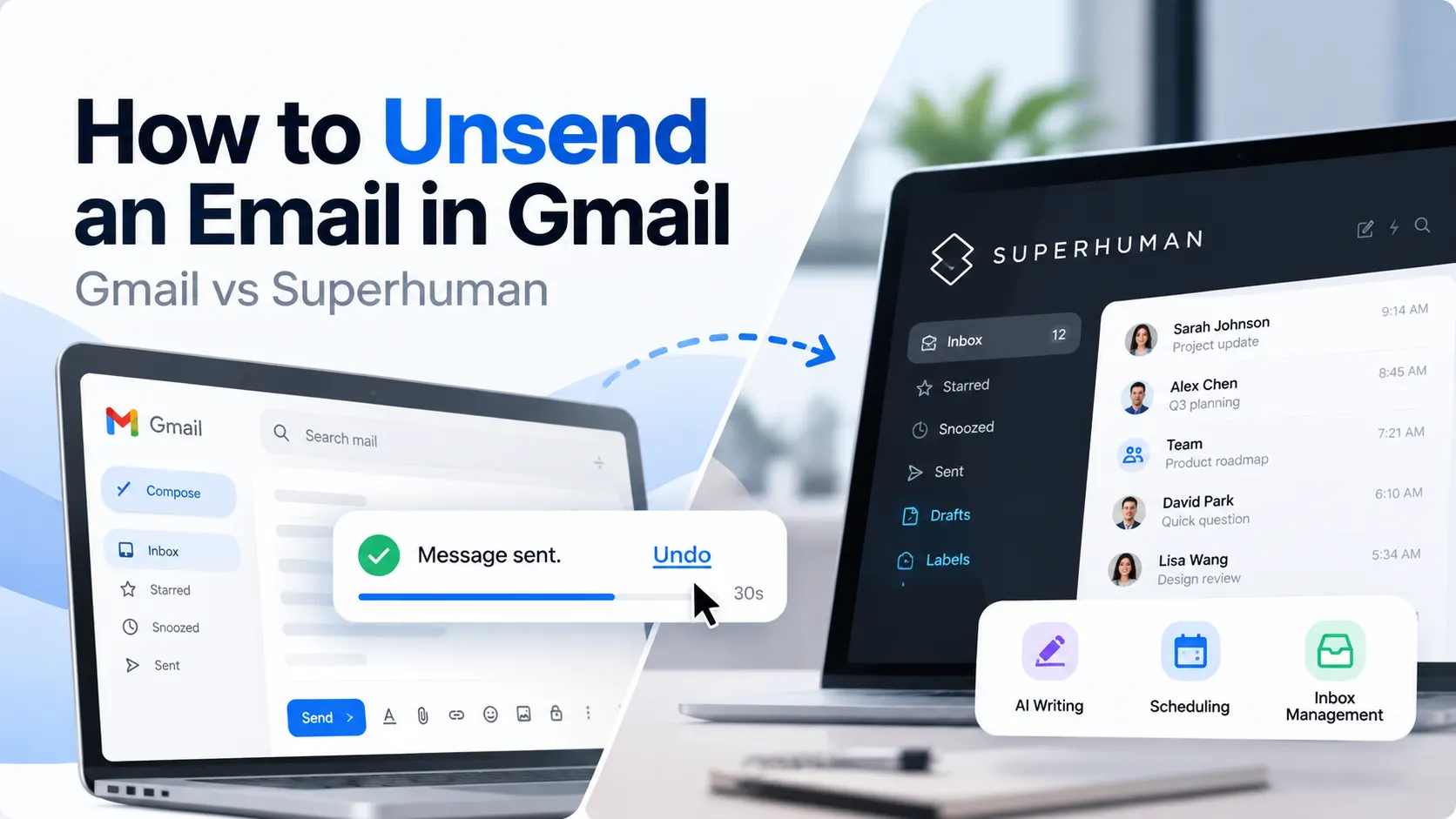
How to Unsend an Email in Gmail and Improve Email Productivity with Superhuman
Have you ever sent an email too quickly and immediately noticed a typo, forgotten attachment, or incorrect recipient? These small mistakes can create unnecessary confusion, particularly when communicating with clients, colleagues, and business partners.
Fortunately, Gmail provides an Undo Send feature that allows you to cancel an outgoing email within a short time window. However, preventing email mistakes is only one part of effective email management. Managing a busy inbox, writing professional messages, and keeping up with follow-ups are equally important for workplace productivity.
This is where Superhuman, an AI-powered email platform, can help. With features designed to streamline email writing, scheduling, and inbox management, Superhuman helps professionals spend less time managing email and more time on meaningful work.
In this guide, we will explain how to unsend an email in Gmail, explore ways to prevent common email mistakes, and discuss how Superhuman can improve your everyday email workflow.
How Does Gmail Undo Send Work?
Gmail's Undo Send feature gives you a limited opportunity to cancel an outgoing email immediately after clicking Send.
Rather than delivering the message instantly, Gmail holds it for the selected cancellation period. During this time, you can stop the email from being sent and return to the compose window to make corrections.
Gmail offers four cancellation periods:
5 seconds
10 seconds
20 seconds
30 seconds
The default setting is 5 seconds. You can extend it to 30 seconds through your Gmail settings.
Important: Undo Send is not the same as retrieving an email after delivery. Once the cancellation period expires, Gmail generally cannot remove the message from the recipient's inbox.
How to Enable Undo Send in Gmail
Before using this feature, check that your Gmail account has the desired cancellation period configured.
Follow these steps:
Open Gmail in your desktop browser.
Click the Settings gear icon in the upper-right corner.
Select See all settings.
Under the General tab, find the Undo Send section.
Open the Send cancellation period dropdown.
Select 30 seconds for the longest available cancellation window.
Scroll down and click Save Changes.
Your updated setting will apply to future emails sent from that account.
Choosing the maximum cancellation period provides additional time to catch mistakes, although it does not guarantee that every error will be noticed before an email is sent.
How to Unsend an Email in Gmail on Desktop
Once Undo Send is enabled, cancelling an email is straightforward.
Step 1: Compose and Send Your Message
Open Gmail, click Compose, enter the recipient's email address, write your message, and click Send.
Step 2: Click Undo
After sending, Gmail displays a confirmation notification with an Undo option. Click it immediately, before the selected cancellation period expires.
Step 3: Edit Your Email
Gmail returns the message to the compose window. You can correct spelling mistakes, update information, change recipients, or attach a missing file.
Review the message and send it again when it is ready.
How to Unsend an Email in Gmail on Mobile
You can also use Undo Send through the Gmail mobile app on Android and iPhone.
Open the Gmail app.
Compose your email and tap Send.
Look for the confirmation notification at the bottom of the screen.
Tap Undo immediately.
Review and correct the message before sending it again.
The cancellation window is short, so you should act as soon as you notice a mistake.
What If You Cannot Unsend an Email?
If the Undo option has disappeared, the cancellation period has usually expired. Gmail's standard Undo Send feature cannot retrieve a message that has already been delivered.
If you have sent an incorrect email, consider these alternatives:
Send a follow-up message with the correct information.
Provide a missing attachment in a separate email.
Clarify any confusing or inaccurate statements.
Contact the recipient directly if the mistake is urgent or sensitive.
Microsoft Outlook also offers message recall in certain supported environments, but its success depends on the account configuration and other conditions.
For this reason, preventing mistakes and establishing a reliable email workflow are more effective than relying entirely on recall features.
How Superhuman Helps Improve Email Productivity
Undo Send is useful for correcting mistakes, but email productivity involves much more than cancelling messages. Professionals also need to write emails efficiently, manage incoming messages, coordinate follow-ups, and communicate clearly.
Superhuman provides a range of features designed to make these tasks more efficient.
1. Write and Edit Emails with AI
Writing professional emails can take considerable time, especially when responding to clients, preparing business proposals, or managing lengthy conversations.
Superhuman's AI writing capabilities can help users draft messages, improve grammar, adjust tone, and make emails more concise.
This can be particularly useful for teams that handle large volumes of customer communication and need to maintain consistent messaging.
2. Schedule Emails for the Right Time
Sometimes, sending an email immediately is not the best option. You may need to review a proposal, confirm a meeting time, or coordinate communication across time zones.
Superhuman's scheduling capabilities allow users to prepare messages in advance and arrange their delivery for a more appropriate time.
Scheduling also provides an opportunity to review important messages before they are sent.
3. Manage Your Inbox More Efficiently
An overloaded inbox can make it difficult to identify important messages, respond promptly, and stay on top of outstanding tasks.
Superhuman is designed to help users process email more efficiently through keyboard shortcuts, streamlined inbox workflows, and email management features.
These capabilities can help professionals spend less time navigating their inbox and more time focusing on priorities.
4. Use Snippets for Repetitive Emails
Many professionals repeatedly send similar messages, including meeting confirmations, client updates, follow-ups, and routine responses.
Superhuman's Snippets feature allows users to reuse prepared text for common communications.
Instead of rewriting the same information each time, users can insert reusable content and adapt it to the recipient or situation.
5. Improve Follow-Up Management
Important emails can easily get buried under new messages. When follow-ups are missed, projects can experience unnecessary delays.
Email productivity workflows can help users keep track of conversations that require attention and manage follow-ups more consistently.
By combining efficient inbox management with reusable templates and scheduling, professionals can establish a more structured approach to business communication.
Gmail Undo Send vs. Superhuman: Understanding the Difference
Gmail Undo Send and Superhuman serve different purposes. Undo Send is a specific Gmail feature, while Superhuman provides a broader email productivity experience.
Superhuman should not be treated as a replacement for Gmail's Undo Send mechanism. Instead, it complements the broader email workflow with tools for writing, scheduling, and managing messages.
Available functionality may vary by account, platform, and subscription.
Best Practices for Avoiding Email Mistakes
Even with productivity tools, a few simple habits can significantly reduce common email errors.
Check Recipients Before Sending
Verify the To, CC, and BCC fields. Auto-complete suggestions can select the wrong contact, particularly when several people have similar names.
Review Attachments and Links
If your message refers to a document, presentation, or website, confirm that the correct attachment or link is included.
Proofread Important Messages
Review spelling, grammar, names, dates, figures, and the overall tone before sending an important email.
AI writing assistance can help improve clarity, but users should always verify the final content.
Use Templates for Repetitive Communication
Create reusable templates for recurring messages. Templates reduce repetitive work and help maintain consistent communication across a team.
Schedule Messages When Appropriate
If a message does not require immediate delivery, consider scheduling it. This gives you more control over timing and an additional opportunity to review the message.
How ADDRS Labs Can Help You Get More from Superhuman
Choosing an email productivity platform is only one part of improving workplace communication. Businesses also need to understand how the platform fits into their existing workflows and how employees can use its features effectively.
As a Superhuman partner and service provider, ADDRS Labs helps businesses explore and adopt Superhuman to support more efficient email workflows.
Whether your team wants to improve email writing, simplify inbox management, or make everyday communication more structured, the right setup can help you get more value from your email platform.
Working with a service provider can also help your organization understand relevant features, identify suitable workflows, and make more effective use of the platform.
If you are considering Superhuman for your business, connect with ADDRS Labs to discuss your requirements and explore the available options.
Frequently Asked Questions
Can you unsend an email in Gmail?
Yes. Gmail allows you to cancel an outgoing email using Undo Send, provided you act within the configured cancellation period.
How long do you have to unsend an email in Gmail?
You can choose a cancellation period of 5, 10, 20, or 30 seconds. The maximum available period is 30 seconds.
Can Superhuman retrieve an email after it has been delivered?
You should not assume that Superhuman can retrieve an email after delivery. Email cancellation and recall depend on the underlying platform and the available functionality. Superhuman's broader value is its email productivity and management capabilities.
Does Superhuman work with Gmail and Outlook?
Superhuman supports Gmail and Outlook accounts. The exact capabilities available can depend on the account and platform configuration.
Is Superhuman useful for business email management?
Superhuman can help professionals manage email through AI-assisted writing, scheduling, reusable snippets, and streamlined inbox workflows. Its suitability depends on the team's communication needs and existing processes.
How can ADDRS Labs help with Superhuman?
ADDRS Labs works as a Superhuman partner and service provider, helping businesses explore the platform and its potential use in their email workflows. Contact ADDRS Labs to discuss your business requirements.
Conclusion
Knowing how to unsend an email in Gmail can help you correct mistakes before a message leaves your account. However, effective email management requires more than a short cancellation window.
Features such as AI-assisted writing, scheduled delivery, reusable snippets, and streamlined inbox workflows can help professionals manage communication more efficiently.
Superhuman brings these productivity capabilities together in an email experience designed for people who manage busy inboxes. With guidance from ADDRS Labs, your Superhuman service provider, your business can explore how the platform fits into its communication workflows.
Ready to improve your email productivity? Contact ADDRS Labs to explore Superhuman and find the right solution for your team.



Comments (0)
No comments posted yet. Be the first to comment!