
In an organisation, most teams don’t lose because the work is difficult or they have less time. The problem is in management.
For example:
A meeting where decisions are being made without any responsibility or plan.
Vendor data list is lost deep in spreadsheet.
A work report needs to be rebuilt manually daily.
Then, how to fill those gaps?
Go through Asana latest updates and explore the options:
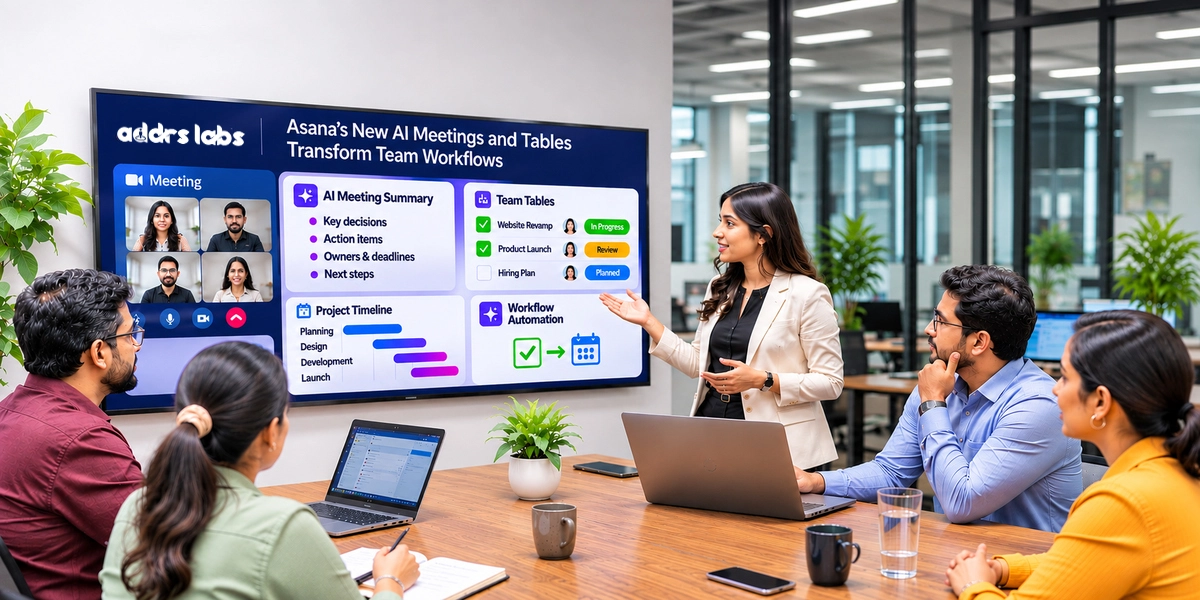
Asana AI Meetings turns calls into tasks.
Asana Tables keeps reference data next to the work.
Asana AI Teammates take on role-based work.
Dash (a personal assistant) and a new automation builder round it out.
Asana is not “a place to track tasks” anymore, now it is upgraded to a place where people and AI agents come together to run workflows.
Asana latest updates: the Q3 2026 release at a glance
The new Asana Automation Builder in the Q3 2026 release provides a centralised, vertical interface to automate workflows across tasks, projects and portfolios, while round-robin assignment automatically distributes high-volume work among team members.
Asana’s quarterly release page groups the Asana Q3 2026 release (also labeled the Fall 2026 release) into three themes.
1. Supercharge teams with ready-to-go AI Teammates
30+ prebuilt AI Teammates across marketing, operations, and IT
Personalized recommendations for which one to deploy
Asana Dash as your “AI Chief of Staff”
The new vertical Asana Automation Builder, for automating across tasks, projects, and portfolios in one place
2. Keep work moving across connected tools
Integrations for AI Teammates: Slack, Canva, HubSpot, Microsoft Teams, OneDrive, Gmail, Google Calendar, Outlook Mail, and more
Round-robin assignment for high-volume work
Cross-app access to keep connected workflows secure
3. Run work with humans and agents from one plan
Pages for planning and collaborating in one place
A redesigned navigation
The Asana Work Graph: a single living map of every person, agent, task, project, goal, and dependency
That last item matters more than it sounds. The Work Graph is the shared context that makes AI Meetings, Tables, and AI Teammates useful instead of generic.
Read More: How Construction Companies Use Asana to Deliver on Time
Asana AI Meetings: from conversation to completed task
Asana AI Meetings, a new feature, is implemented to transcribe meetings, generate an AI summary, and suggest action items you can convert into tasks. According to Asana’s help center, AI Meetings connect the conversations where work gets discussed to the tasks that follow.
In practice, Asana will:
Transcribe the meeting
Write an AI summary
Suggest action items you can turn into tasks without leaving the app
Why is it more than a transcription tool?
Plenty of tools record calls. What’s different here is context:
AI Meetings draws on your Work Graph
Summaries and task assignments are grounded in your existing projects, goals, and teammates
It doesn’t guess from the transcript alone
Privacy, consent, and cost
Consent is on you. AI Meetings don't start transcribing automatically. You’re responsible for getting consent from every participant, and Asana posts a chat message noting the recording.
Private by default. Transcripts, summaries, and action items stay private until you share them with collaborators or a project.
Usage cost. One AI Request covers a summary and suggested tasks for meetings up to 60 minutes, plus one more per extra 60-minute block.
Availability. Listed for Advanced, Enterprise, and Enterprise+ plans, and for Asana Command, Client Management, and AWM customers who have it enabled. Check Asana’s pricing page for current details.
Read More: How to Manage Your Time Effectively with Asana Workflows
Asana Tables: structured data that lives next to your work
Project tools have always been awkward at one thing: reference data. Vendor lists, asset registers, and client directories usually end up as:
Fake “projects”
Full of tasks nobody is meant to complete
Asana Tables fixes that with a new object type. Based on guidance from an Asana community Forum Leader:
A table is a container (a stripped-down project)
A record is a row inside it (a stripped-down task)
Records have no assignee, due date, or completion state, because they’re built to be looked up, not actioned
When to use a table
A simple rule of thumb from the community:
Someone needs to act on it by a date: it’s a task
People need to look it up while doing their tasks: it’s a record
Good fits include:
Vendors and supplier details
Assets and equipment
Properties and locations
Customer accounts and product catalogues
What you can do with Tables
Field types: text, number, date, single-select, multi-select, and people.
Reference and lookup fields: connect records to tasks, projects, portfolios, goals, teams, and other records, then pull values (like an address) into the work that needs them. Lookups respect permissions, so nobody sees data from records they can’t access.
Import and capture: CSV import, forms that create records, and API or MCP access.
Convert existing projects: use “Create table from project” if you’ve been using a project as a makeshift database.
Permissions: tables use Asana’s existing model, down to individual records.
What to know before you commit
Available on Advanced, Enterprise, and Enterprise+ plans
Live at the workspace level, under Knowledge mode
No board, timeline, or calendar views
Asana is explicit that a table isn’t a CRM, BI warehouse, or SQL database
Early community testing found automations in tables are still limited
Treat Tables as a reliable source of truth for reference data, not a replacement for a full CRM.
Not to be confused with the formatting option:
A basic table in a task description (available since 2023) is a layout tool
Asana Tables is a data structure
Read More: How Addrs Labs and Asana Transform Enterprise Productivity
How AI Meetings and Tables work together
The two features solve opposite halves of the same problem.
AI Meetings captures unstructured knowledge (what people said)
Tables hold structured knowledge (what’s true about vendors, assets, or accounts)
Both feed the Work Graph
Asana notes that AI Teammates and Dash can read table data, which is one of the main reasons Tables exist: richer context for AI and automation
Picture a vendor review call:
AI Meetings produces the summary and draft follow-ups
The vendor’s record in a table holds the contract terms and contact
A task references that record, so the owner sees the facts without hunting for them
Nothing gets retyped
Asana AI Teammates: agents that work inside your workflows
Asana AI Teammates are prebuilt AI agents that work alongside your team inside real workflows.
Shared memory, governance, and context from the Work Graph
30+ prebuilt Teammates across Essentials, Marketing, PMO and Strategic Ops, IT, Manufacturing, Retail, Healthcare, and Professional Services
A few examples from Asana’s own lineup:
Project Manager: turns a brief into a project plan with tasks and owners, and flags blockers.
Work Intake Specialist: triages incoming requests and routes them to the right teams.
Executive Reporter: drafts board-ready reports from portfolio data.
Campaign Coordinator: checks channel workstreams before launch.
Under the hood:
Skills: role-specific know-how bundled into each Teammate
Integrations: 10+ apps, including Gmail, Slack, HubSpot, and Databricks
Access: they only see the work you grant
Data: Asana and its AI partners state they don’t use customer data to train models
Build your own: define the role, give it guidance, add skills, grant access
The key difference from a chatbot: you assign work to an AI Teammate the way you would to a person, and several people can train and improve it.
Chat with Dash: your personal AI chief of staff
Chat with Dash replaces Smart Chat with something more execution-oriented. Instead of only answering questions, Dash helps you act on what’s in Asana.
With Dash, you can:
Ask what changed in a project this week
Have it draft a status update
Turn meeting notes into follow-up tasks
Create or update work
Prioritize your day
It works with whatever you’re viewing. When a request needs a shared, repeatable workflow, it can delegate to an AI Teammate.
Dash vs. AI Teammates:
Dash is private and personal; AI Teammates are shared agents your team configures for autonomous workflows.
A few practical notes from Asana’s documentation:
Conversations with Dash are visible only to you, though answers draw on everything you have access to
Most chats are covered by a standard license
Web search, integrations, complex research, and long-form content use AI Requests
Admins must enable AI for your organization first
Asana Automation Builder and AI workflow automation
Automation is where the other features compound. Asana’s workflow automation page describes building custom workflows without code:
Forms, rules, templates, bundles, and reporting dashboards
270+ app integrations
AI Studio for no-code AI automations
A practical rollout plan
Rolling everything out at once is how good features get ignored. Here’s a sequence that works:
Check your plan and admin settings. AI Meetings and Tables need Advanced or above; AI must be enabled for your org.
Start with one recurring meeting. Run AI Meetings on a weekly sync for a month and measure how many action items actually become tasks.
Move one makeshift database into a Table. Vendor or asset lists are the easiest first wins.
Pick one AI Teammate. Use the Project Analyzer’s recommendation and give it a narrow, measurable job.
Set consent and sharing rules. Document how your team asks for recording consent and who can see transcripts.
Watch AI Request usage. Know what consumes requests before it surprises your budget.
Where Addrs Labs Fits
Asana's latest AI features can improve team workflows, but businesses need the right implementation, integrations and automation to get the most out of them.
As a Gold Asana Solutions Partner, Addrs Labs helps enterprises build smarter workflows through:
Asana implementation: Configure projects, portfolios, dashboards, and approvals around business needs.
Workflow automation: Reduce repetitive tasks, manual approvals, and work handoffs.
AI-powered workflows: Implement Asana AI Studio and AI Teammates for reporting, request handling, and project management.
Integrations: Connect Asana with Microsoft Teams, Outlook, SharePoint, CRMs, and ERPs.
Human + AI workflows: Combine AI-driven execution with human oversight.
Ready to get more from Asana's latest AI capabilities?
Connect with Addrs Labs for Asana implementation, workflow automation, and AI-powered solutions.
Frequently Asked Questions
1 What’s the difference between Dash and AI Teammates?
Dash is a personal assistant for individual productivity. AI Teammates are shared agents your team configures for repeatable workflows.
2 Is an Asana Table the same as a CRM?
No. Asana positions Tables as structured reference data connected to work, not a CRM or database replacement.
3 Does Asana AI Meetings automatically create tasks from meeting discussions?
Yes, but not automatically. Asana AI Meetings suggests action items based on the meeting discussion. You can review, edit or reject these suggestions before accepting them as tasks.
4 Can I use Asana AI Meetings with Zoom, Microsoft Teams and Google Meet?
Yes, it addresses compatibility and explains the available ways to capture meeting discussions across these platforms.
5 How can I manage vendor details and project information without maintaining separate spreadsheets?
Asana Tables keeps structured records connected to the projects and tasks that use them.
6 What happens when information in an Asana Table changes? Will connected projects show the latest details?
Addresses the problem of outdated information being repeated across spreadsheets and project workflows.

Comments (0)
No comments posted yet. Be the first to comment!